Introduction#
Plane is a modern project management platform. It is open source and offers a generous free plan and also a community edition.
We are using the community edition of Plane. You can know about Plane’s editions here.
In this tutorial I will guide you through the steps to install and configure Plane on Debian 12, setup Plane and use Caddy to automatically reverse proxy and generate an SSL certificate.
Steps#
Step 1: Pre-requisites#
You need docker installed on the vps as we will use the docker to install Plane. You can follow the instuctions on the docker’s official website.
You also need caddy installed in your system and can follow the instructions on Caddy’s website.
Check and update all other applications using the following.
sudo apt update
sudo apt upgrade
Step 2: Installing Plane#
Now we have Docker and Caddy installed on our system we use the following command to to create a directory to install plane in.
mkdir plane
Move into the directory using.
cd plane
Download the latest stable release.
curl -fsSL -o setup.sh https://github.com/makeplane/plane/releases/latest/download/setup.sh
Make the file executable
chmod +x setup.sh
Run the setup file using
./setup.sh
You will be prompted with options to run, select 1 to install, it will create a
folder plane-app and will download the docker-compose.yaml and `plane.env’ files.
Press 8 to exit.
Navigate into the plane-app directory using
cd plane-app
Open and edit the plane.env file using
sudo nano plane.env
Edit the following
- LISTEN_HTTP_PORT=80 to 8080
- LISTEN_HTTPS_PORT=443 to 4430
- WEB_URL=https://plane.domain.com (replace with your domain)
- CORS_ALLOWED_ORIGINS=https://plane.domain.com (replace with your domain)
plane.env. Ports
such as 8080 and 4430.This is your finished plane.env, you have no need to edit the docker-compose.yaml file.
APP_DOMAIN=localhost
APP_RELEASE=v1.0.0

WEB_REPLICAS=1
SPACE_REPLICAS=1
ADMIN_REPLICAS=1
API_REPLICAS=1
WORKER_REPLICAS=1
BEAT_WORKER_REPLICAS=1
LIVE_REPLICAS=1

LISTEN_HTTP_PORT=8080
LISTEN_HTTPS_PORT=4430

WEB_URL=https://plane.domain.com
DEBUG=0
CORS_ALLOWED_ORIGINS=https://plane.domain.com
API_BASE_URL=http://api:8000

#DB SETTINGS
PGHOST=plane-db
PGDATABASE=plane
POSTGRES_USER=plane
POSTGRES_PASSWORD=plane
POSTGRES_DB=plane
POSTGRES_PORT=5432
PGDATA=/var/lib/postgresql/data
DATABASE_URL=

# REDIS SETTINGS
REDIS_HOST=plane-redis
REDIS_PORT=6379
REDIS_URL=

# RabbitMQ Settings
RABBITMQ_HOST=plane-mq
RABBITMQ_PORT=5672
RABBITMQ_USER=plane
RABBITMQ_PASSWORD=plane
RABBITMQ_VHOST=plane
AMQP_URL=

# If SSL Cert to be generated, set CERT_EMAIl="email <EMAIL_ADDRESS>"
CERT_ACME_CA=https://acme-v02.api.letsencrypt.org/directory
TRUSTED_PROXIES=0.0.0.0/0
SITE_ADDRESS=:80
CERT_EMAIL=


# For DNS Challenge based certificate generation, set the CERT_ACME_DNS, CERT_EMAIL
# CERT_ACME_DNS="acme_dns <CERT_DNS_PROVIDER> <CERT_DNS_PROVIDER_API_KEY>"
CERT_ACME_DNS=


# Secret Key
SECRET_KEY=60gp0byfz2dvffa45cxl20p1scy9xbpf6d8c5y0geejgkyp1b5

# DATA STORE SETTINGS
USE_MINIO=1
AWS_REGION=
AWS_ACCESS_KEY_ID=access-key
AWS_SECRET_ACCESS_KEY=secret-key
AWS_S3_ENDPOINT_URL=http://plane-minio:9000
AWS_S3_BUCKET_NAME=uploads
FILE_SIZE_LIMIT=5242880

# Gunicorn Workers
GUNICORN_WORKERS=1

# UNCOMMENT `DOCKER_PLATFORM` IF YOU ARE ON `ARM64` AND DOCKER IMAGE IS NOT AVAILABLE FOR RESPECTIVE `APP_RELEASE`
# DOCKER_PLATFORM=linux/amd64

# Force HTTPS for handling SSL Termination
MINIO_ENDPOINT_SSL=0

# API key rate limit
API_KEY_RATE_LIMIT=60/minute
DOCKERHUB_USER=artifacts.plane.so/makeplane
PULL_POLICY=if_not_present
CUSTOM_BUILD=false
Save and close the file.
Step 3: Configuring Caddy#
After setting up Plane, we must configure Caddy.
Use the following command to open the CaddyFile
sudo nano /etc/caddy/Caddyfile
Clear out the default contents and paste the following in the file.
Replace plane.domain.com with your actual domain.
plane.domain.com {
        reverse_proxy localhost:8080
}
Save and restart Caddy service using the following command.
sudo systemctl restart caddy
Step 4: Start Plane#
After configuring Caddy, move into your plane-app directory. Start Plane
using the following command.
Run the setup file using
./setup.sh
Select 2, this will pull the necessary images, start the containers in the background,
and set Plane up and running at port 8080.
You can check if everything is running properly using
sudo docker ps -a
This will list all running Plane containers, services listed and marked as Up.
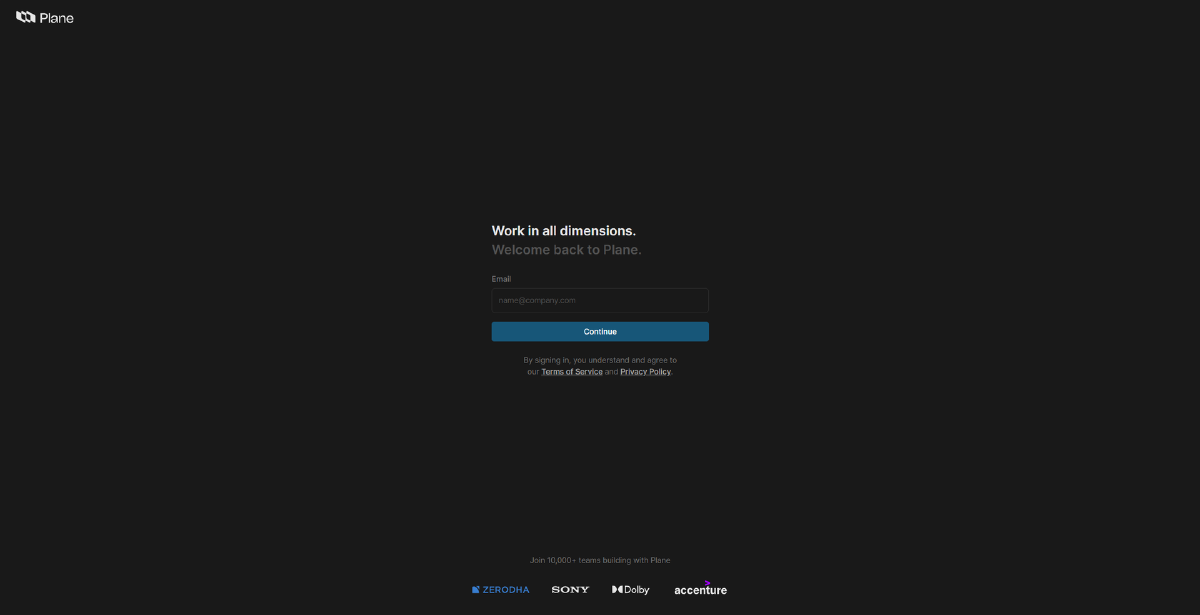
You can now access Plane through your domain specified in CaddyFile.
plane.domain.com
You will be introduced to God mode in your first visit, following the instructions you can
setup your plane instance and admin user.
Update#
Run the setup file using
./setup.sh
Select 5 to upgrade and then select 4 to restart, this will upgrade and then restart Plane.
Conclusion#
With this, your Plane instance is now fully deployed and secured behind a reverse proxy, you have control over your project management.
From here, you can start adding projects, views, and creating new users.
If you run any issues or need further help, fell free to reach out via email or open a discussion